

A guide to setting up Apache, MariaDB, PHP, and Perl on Linux
Installing XAMPP (Apache + MariaDB + PHP + Perl) on Linux
A guide to setting up Apache, MariaDB, PHP, and Perl on Linux
What is XAMPP?
XAMPP is the most popular PHP development environment. It's a completely free, easy to install Apache distribution containing MariaDB, PHP, and Perl. The XAMPP open source package has been set up to be incredibly easy to install and to use.
- Download XAMPP from official website
- Set file permissions to executable
- Run installer with sudo privileges
- Verify installation in /opt/lampp
- Start XAMPP (GUI or CLI)
- Set project folder permissions
- Test locally at http://127.0.0.1
- Troubleshoot if needed
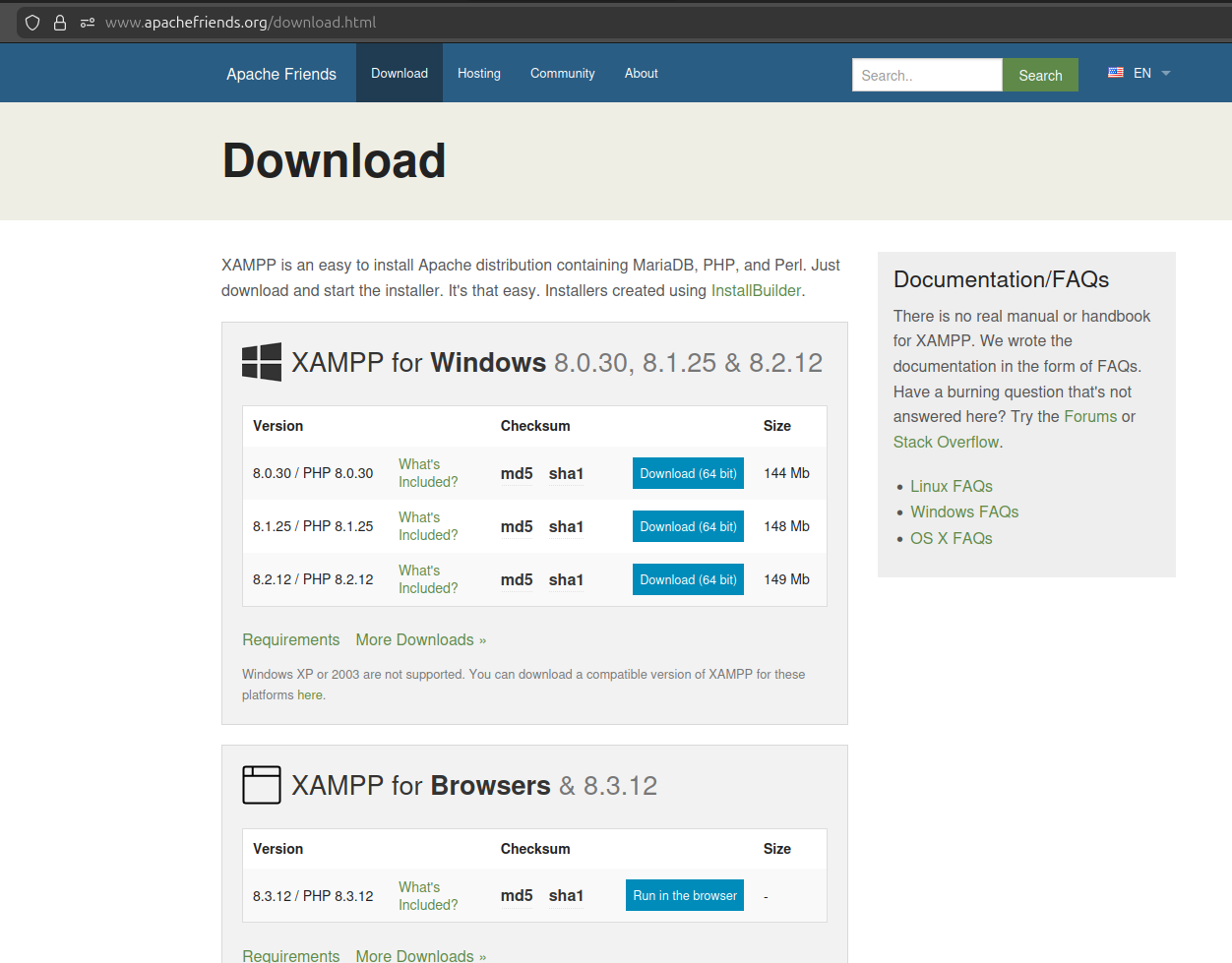
1.) Download
📥 Download XAMPP from the official website
2.) Install
Step 2.1: Change File Permissions
Make the installer executable:
chmod 755 xampp-linux-*-installer.runStep 2.2: Run the Installer
Execute with sudo privileges:
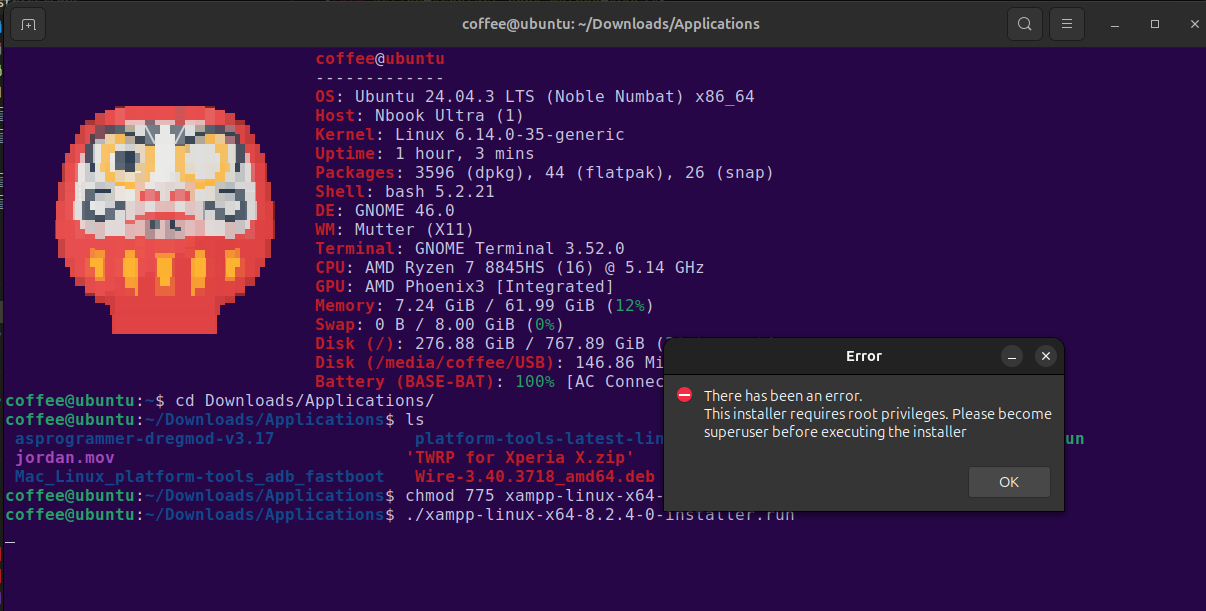
sudo ./xampp-linux-*-installer.run⚠️ Root Privileges Required
Root privileges are needed to install XAMPP. If you forgot to use sudo, run: sudo !!
3.) Directory Structure
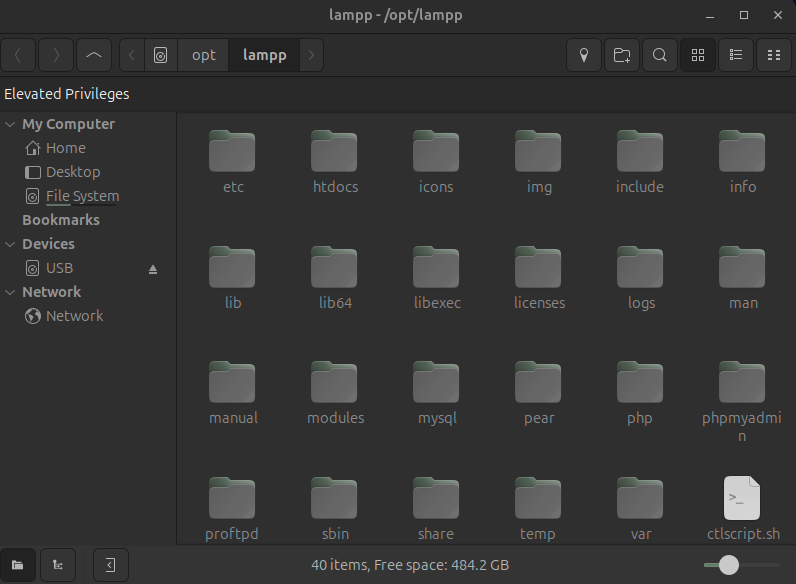
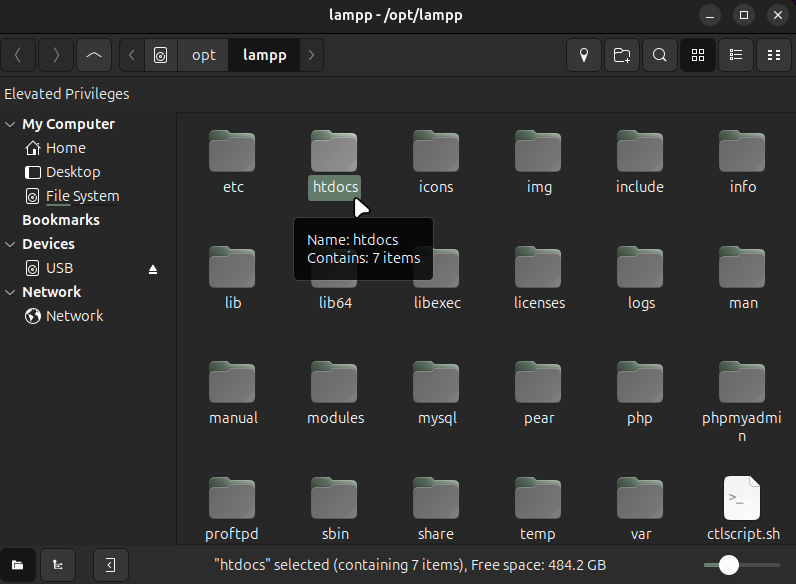
XAMPP will be installed in /opt/lampp. This is where you'll add your projects:
/opt/lampp/htdocs/
├── project1/
│   ├── index.html
│   └── contact.php
├── project2/
│   ├── index.html
│   └── contact.php
└── project3/
    └── ...
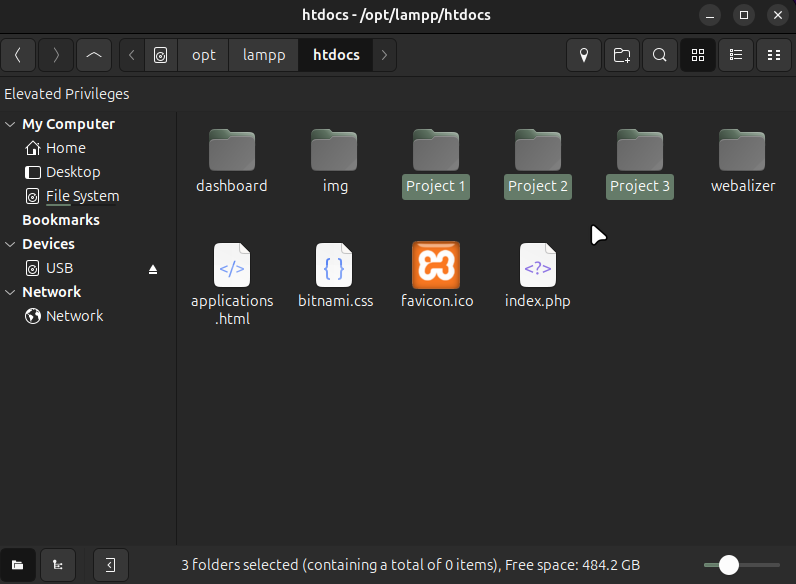
💡 Tip: Organization
Keep each project in its own folder to avoid conflicts and make organization easier in the future.
4.) GUI vs CLI
Graphical User Interface (GUI)
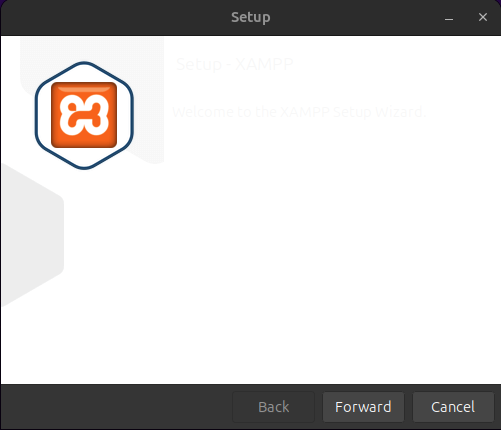
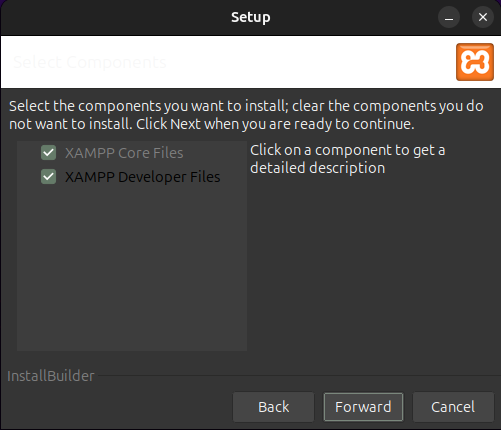
The easiest way to manage XAMPP is through the GUI. Launch it and you'll see all the options:
Command Line Interface (CLI)
You can also manage XAMPP services via the command line:
sudo /opt/lampp/xampp start
sudo /opt/lampp/xampp stop
sudo /opt/lampp/xampp restart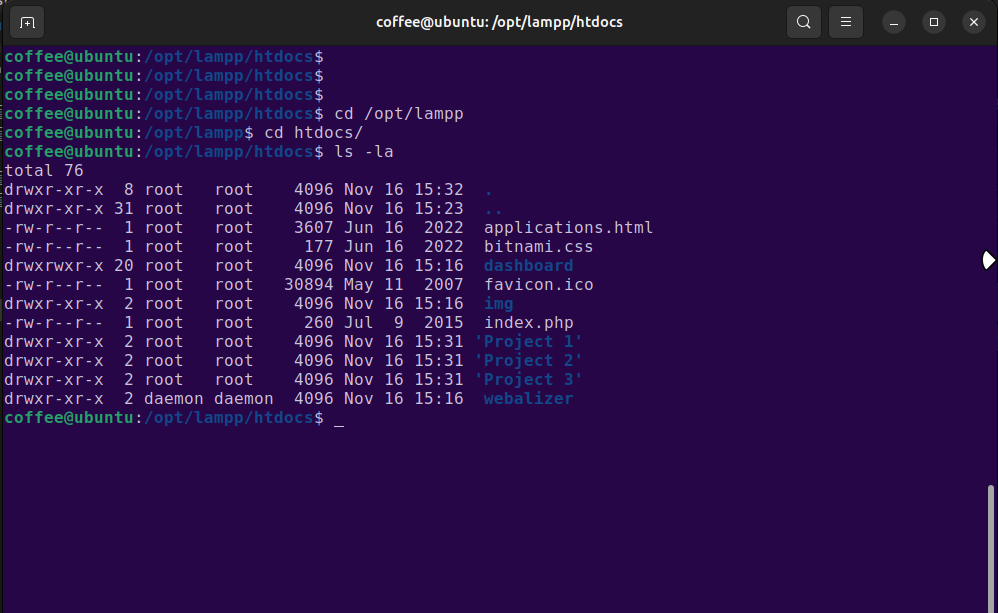
5.) Activate PHP & Test Locally
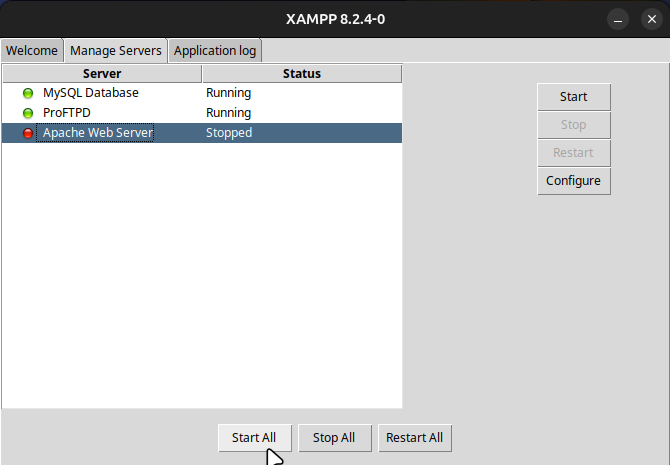
Once XAMPP is running, you can test your PHP projects locally by visiting:
http://127.0.0.1/project-name/6.) File Permissions
Make sure Apache can read and execute your project files:
chmod -R 755 /opt/lampp/htdocs/your-project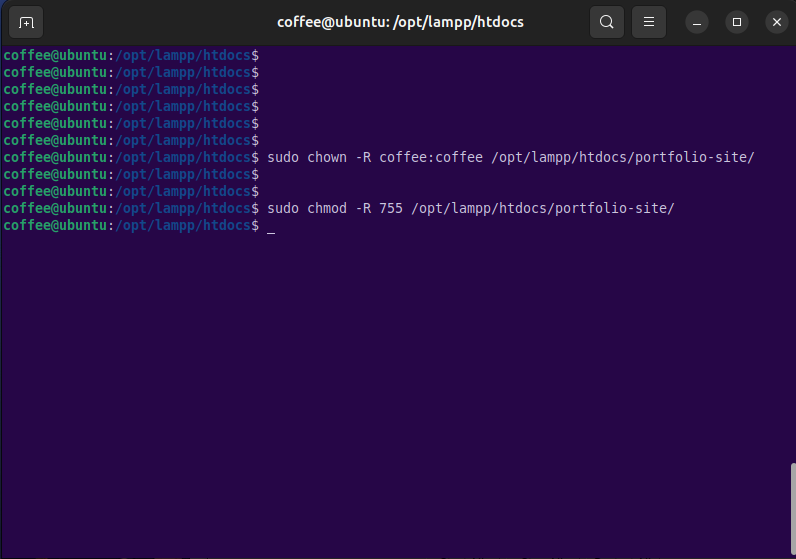
💡 Remember: Permissions Matter
Always ensure proper file permissions so Apache can access and execute your files correctly. This is crucial for your projects to work.
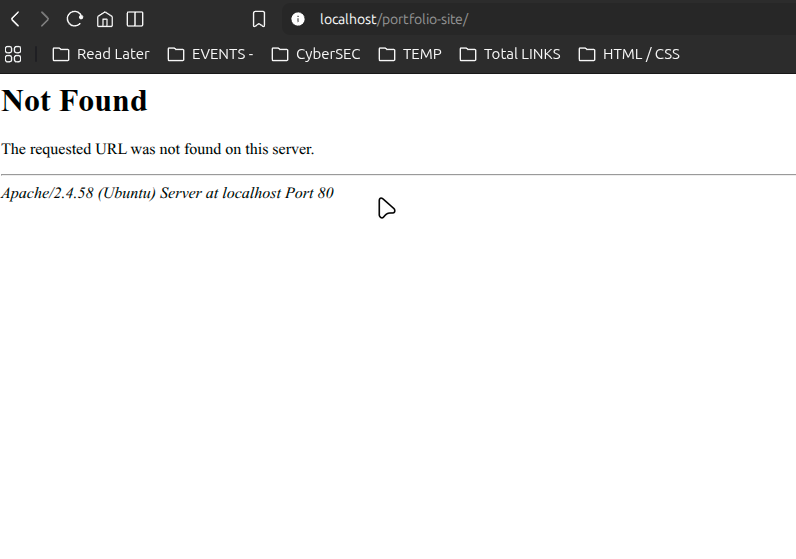
7.) Troubleshooting
Port 80 Already in Use
If XAMPP won't start, port 80 might already be in use by another service. Check which process is using it:
sudo netstat -tulpn | grep :80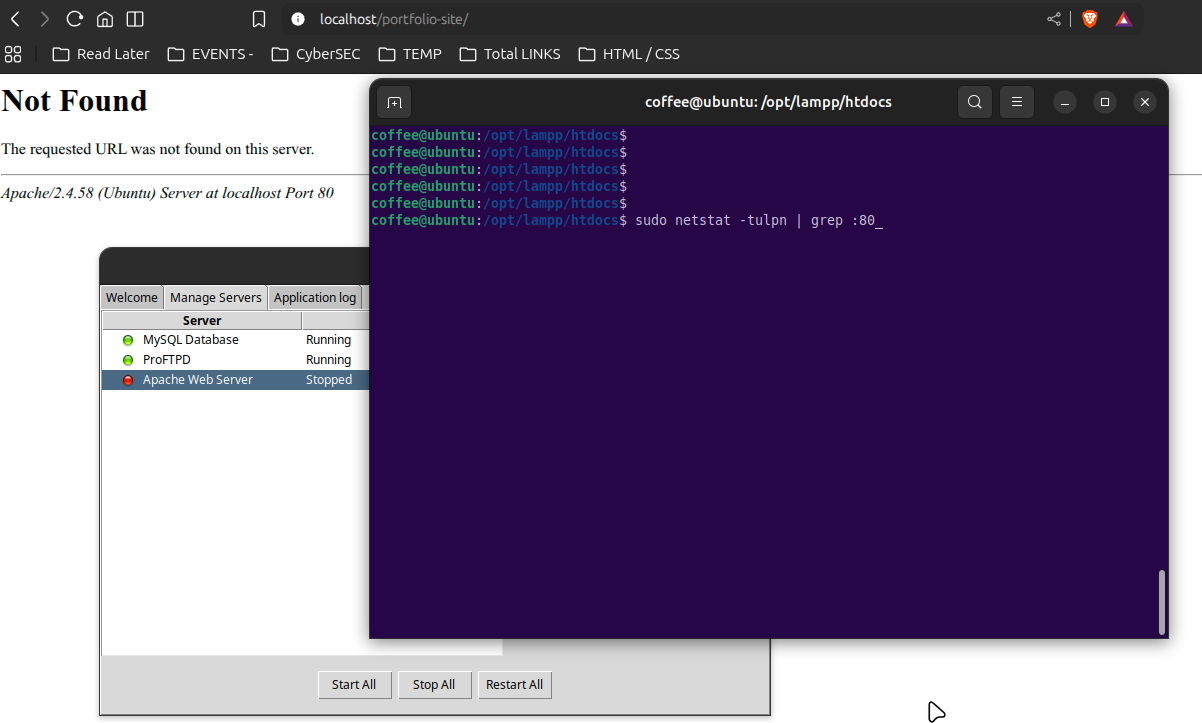
⚠️ Common Culprits
Your code editor's live server might still be running. Stop it first before starting Apache. Other services like nginx could also be using port 80.
Stop Conflicting Services
sudo systemctl stop apache2
sudo systemctl stop nginx
Then restart XAMPP and try again.
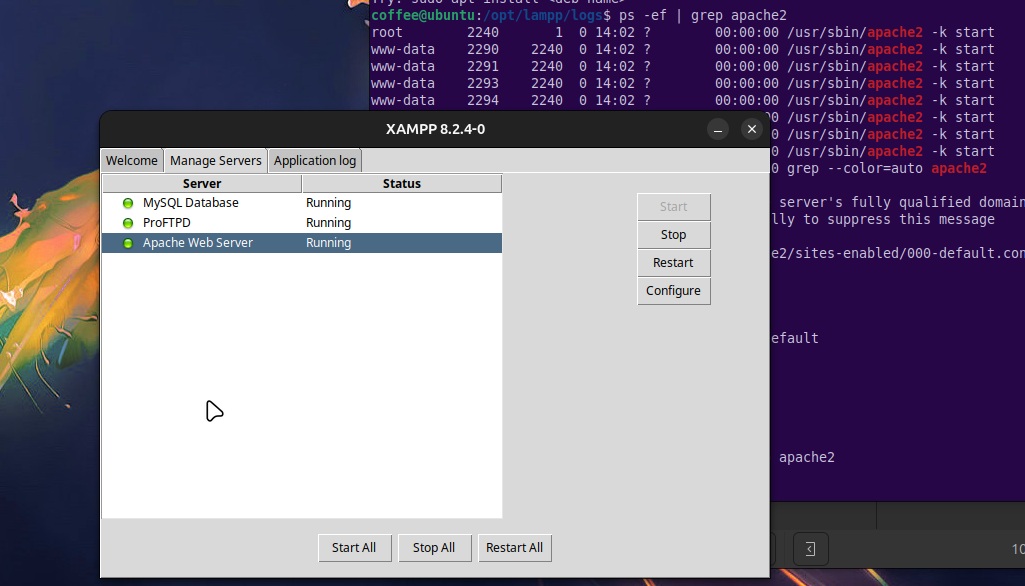
And Hopefully, Congratulations! 💐
You are now running your own AMP server! You can use this to test back-end features like email, databases, and more locally before deploying to production. This is an essential tool for web development.